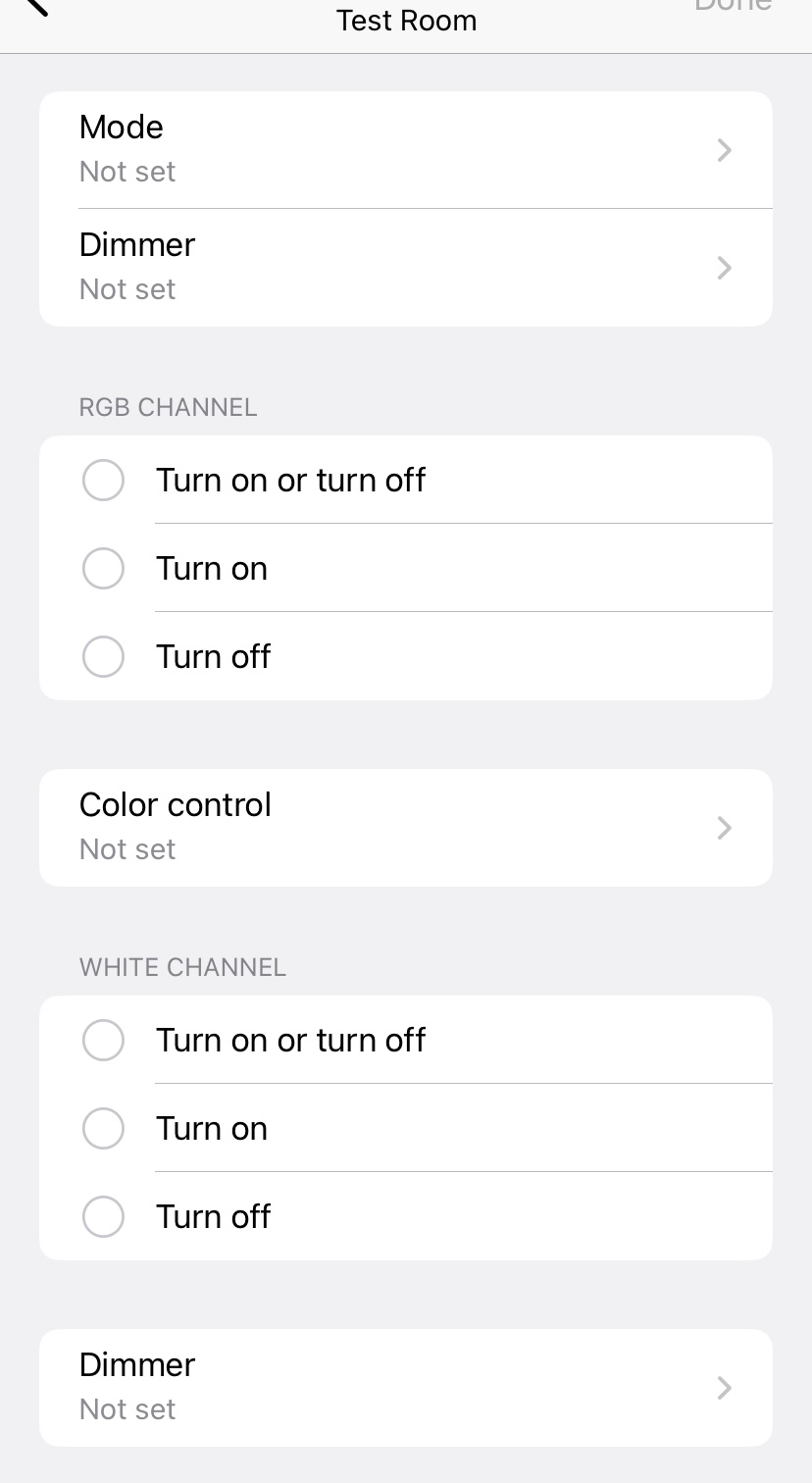
It has multiple components in the profile, to allow separate controls for the RGB and W channels on this LED controller.
During testing this is the issue that was found
When trying to make a routine only the on/off options show up for the non-main components. The color picker does not show on the RGB channel, and the Dimmer does not show on White (not in the example but it is in my custom driver).
Issue is Android Only - iOS app seems to work correctly.
Tested on two totally different Android devices by two separate people.
Issue only happens in routines, the details view works correctly.
Issue only happens with non-main components (I tested adding colorControl to main which works).
I used the CLI to check the generated presentation ID and everything looks normal.
Also, is there an easy way I can just force that example driver/profile I linked up above on to a device or virtual device or something for testing? Other than copying the driver, modifying it to allow it for my device and publishing it to my channel, which I know how to do but it is annoying.
Select the time period and confirm - In this step, please select “Until turned off”, once the team finishes, we’ll let you know so you can disable it again.
• Device name so we can obtain the device ID and presentationId
• App logs from both iOS and Android devices
Android
Go to Menu > Gear Icon > About SmartThings
Tap the SmartThings logo 10 times.
This will open the developer’s space > tap ‘report a problem’
This will send you to the report page. Select a frequency and write a short description of the issue.
Click on “Report” and a log file will be generated for you to send over email, please do to build@smartthings.com
iOS
First:
Enable the creation of additional logs in the app:
In the ST app, go to “menu” > “settings”.
At the bottom of that page, you’ll find a section called “Troubleshooting”. Please, enable the option that says “Create Additional SmartThings Log”.
Restart the app
Then:
In the app menu, go to “contact us”
Then, tap on “Error reports”
On the opened page, tap 10 times on the title/label “What is the error about?” or until the prompt to create a log appears.
Click on “ok” and wait for the process to finish. Then, save the generated file in the place you prefer and share it with us at build@smartthings.com
For the app logs, please reproduce the issue first by opening the app, attempting to create a routine, and then immediately collecting and sharing the app logs from the device.