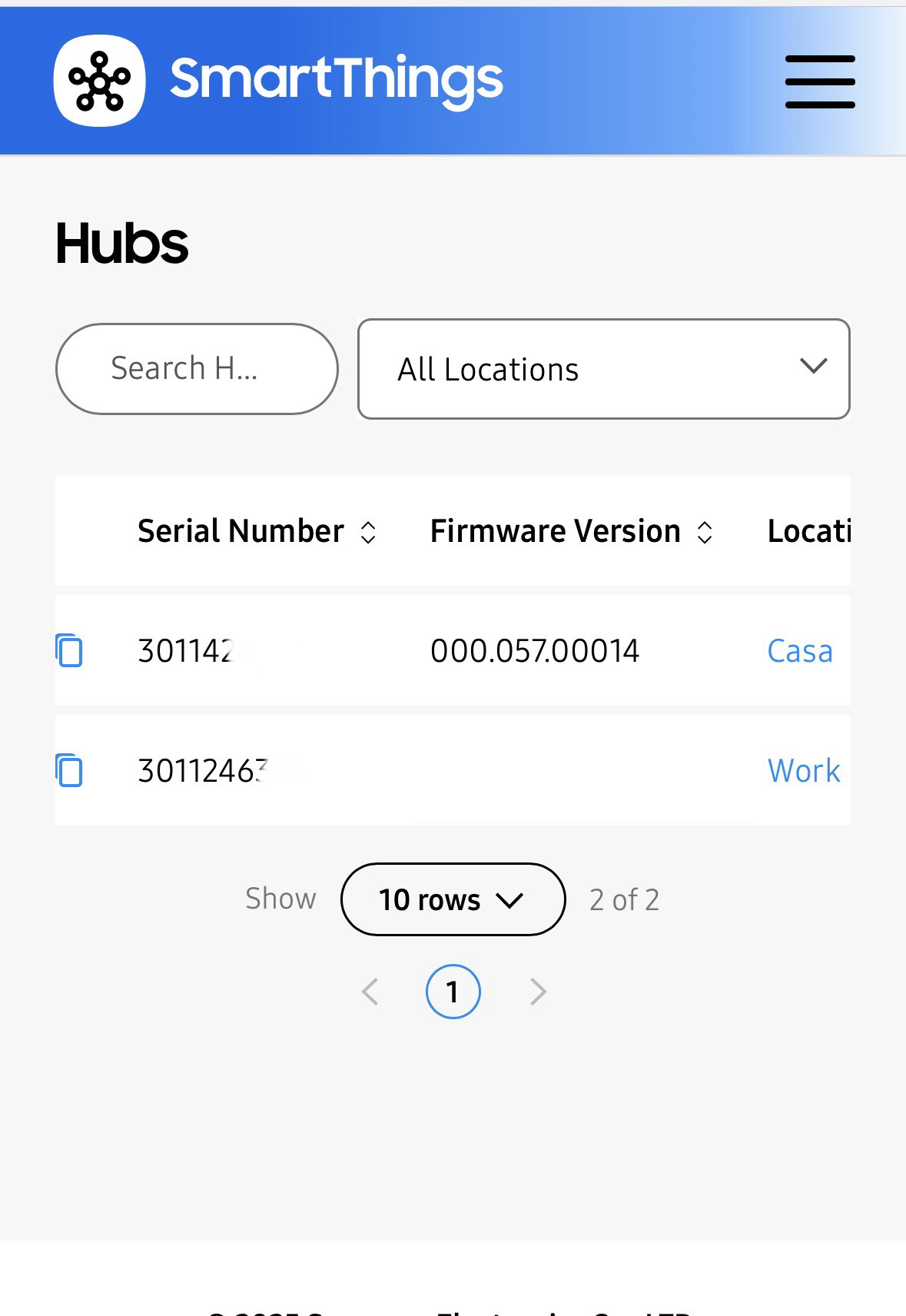
I’ve been using my ST Hub at home for about 4 years, and it works 100%.
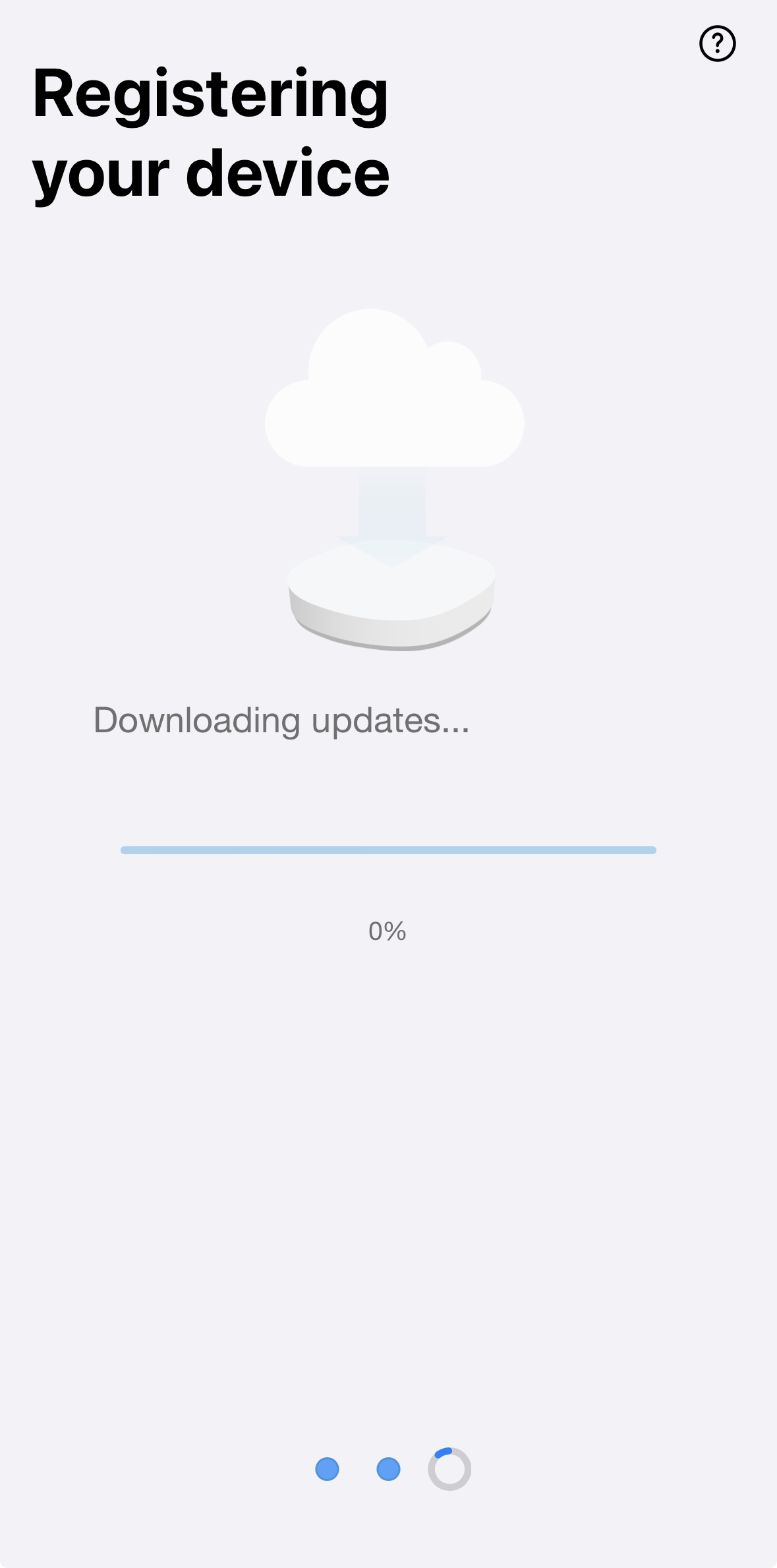
I recently bought another ST Hub from the US to install in my office (which is next door to my house, but on a different internet network). I’ve tried installing my new hub several times, but the blue light stays on constantly on, and I can’t install any drivers. I’ve reset it about 10 times and even tried installing it on another account, over wi-fi or ethernet, but I can’t configure anything.
It’s detected, but I can’t add, edit, or update anything.
I see my hub in my location, but I always get the message when trying to add drivers: “BadRequestError: Hub (Hub) does not support edge drivers”. My Hub Firmware version isn’t shown even in Advanced Panel.
For these hubs, blocking NTP traffic during hub claim can allow the hub to connect to the hub firmware update server. This does require administrator access to your router and the ability to set Access Control Rules. The following steps outline how users with the necessary permissions and equipment access can proceed:
Locate the steps provided by your home network router manufacturer to access the Router Settings / Admin Interface.
In your Router settings, navigate to Access Control Rules and create a rule to disable UDP port 123 (NTP). (What is NTP Wiki). Please be sure to set only the source port as 123 and do not specify a destination port.
Factory reset the SmartThings/Aeotec Hub.
Go through the standard onboarding/hub claim process outlined in the hub documentation provided with the device.
If you still have trouble claiming, please collect hub logs as outlined in the Troubleshooting section below before rebooting.
Once the hub has successfully onboarded, remove the Access Control Rule created to block UDP Port 123. At this time, the hub should have updated its firmware to the latest supported version.
** If blocking the NTP port is not functional, another option some users have had success with, is blocking URLs for your specific region within the Access Control or Parental Controls. Here is a guide to find your NTP server for your specific region.
5. Select the time period and confirm - In this step, please select “Until turned off”, once the team finishes, we’ll let you know so you can disable it again.
I’ve tried to do those steps in my house (i’ve another V3 hub working fine there) and couldn’t. Today, i’ll try in my friends house, wich is far away from my adress. If we can’t update, is there another way to make this Hub works?
This Hub wasn’t used for a long time (probably more than 4 years) according to the seller…
If it does and these steps don’t work, you need to go through the replacement process to see if it gets accepted. Based on your comments, it seems it is a second-hand Hub, right? I don’t know how that would be treated since we don’t have contact with this process.