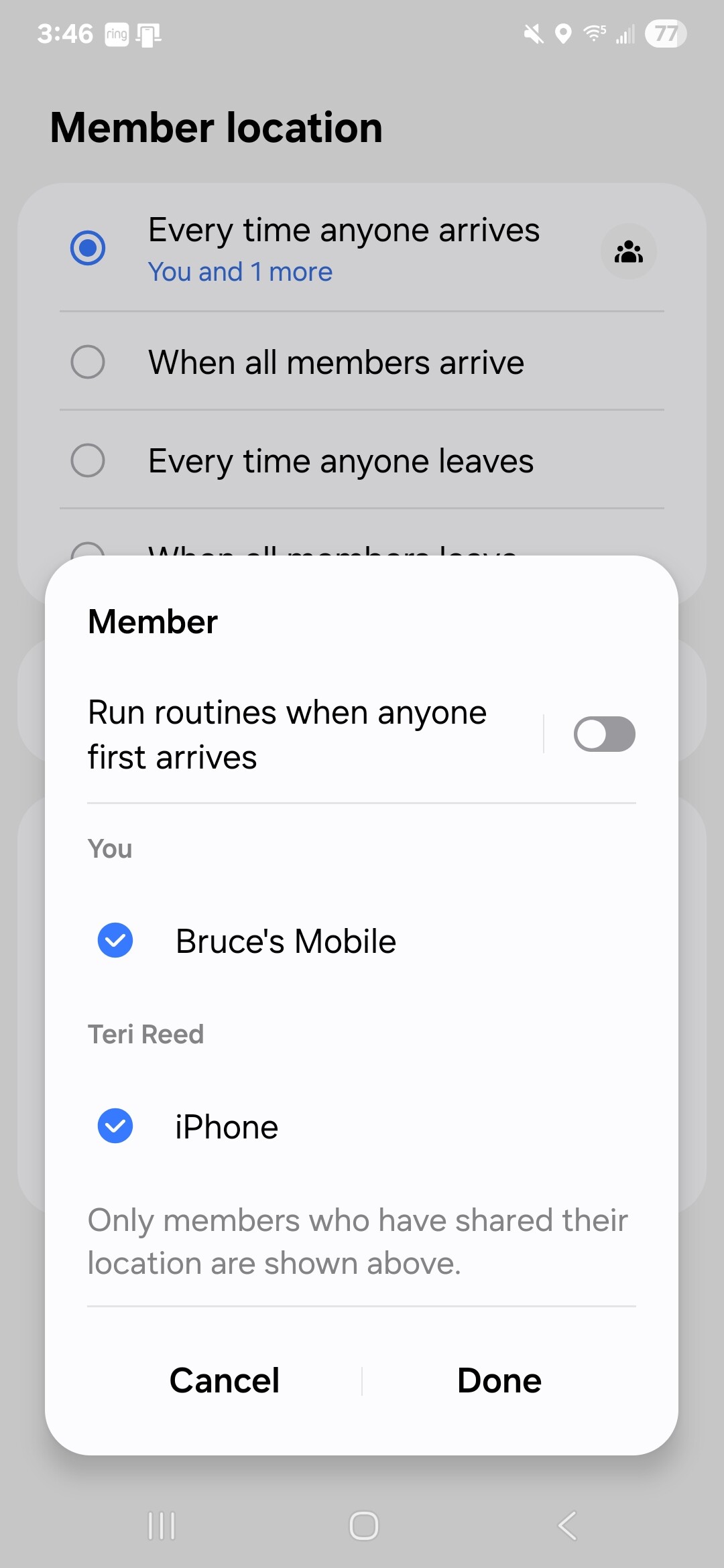
It’s really frustrating trying to get presence working using two different iPhones that are logged into SmartThings using the same account. Each iPhone have a specific name, when I create a routine the iPhones are shown, but the names are not correct. I’ve had SmartThings for years, maybe these are previous iPhones, no idea.
What I’d like to do is remove the iPhones and add them back fresh. The iPhones don’t show up as a device, where do I find them so I can remove them?
I went to the SmartThings Advanced link above. I found an iPhone there, listed twice and named “iPhone”, which is not how I have mine named. I updated the name in the advanced portal, but the new name doesn’t show up in the app when creating a routine. I added the second phone and the same thing happened. So I have no way to know which iPhone is which?
that is normal.. there will be two entities for your phone. I believe you will see 1 listing in AWA for other user’s phone and they will see the two when they are logged into AWA.
Best practice is to use a different account for each phone instead of using 1 account.
can you explain why you want to use one account on two different phones?
I was thinking that sharing one account between my wife and I would allow the same devices, routines etc. Admittedly, I didn’t look into best practices when you have multiple devices that you want to be able to control devices and run routines when I set it up.
Besides the issues with mobile presence, if you use the ST Alexa skill and each user has a separate Alexa account, one of the two Alexa accounts will be disconnected. A ST account can only be linked to one Alexa account at a time.
I created an account for my wife. Logged in with it on her iPhone and then went to the camera app to scan the QR code displayed on my iPhone. I don’t see any devices, routines etc. even though I selected “Full Access”. I’m not sure what I did wrong.
On Home page, upper left, chose manage locations, select your location, go to members, select your wife, then drill into permissions and select what you want.