I have pushed the update to github so you can update and get the lastest update.
The latest updates are as follows
The Main app will now unschedul the Location alarm state change if you disarm it before scheduled event occurs. This should improve location alarm state sync with the ADT Panel
The light action type 4 should now work if you have lights provided that do not support dimming. This is directly related to the issue you were experiencing. This applies to both the Security and Home/Life alert apps.
A new configurable option is available to select what lights should be set to 100% when used in light option 2 and 4. This will allow dimmable bulbs to be used and adjust at time of the alert event.
I think that rounds out the issues you were experiencing. Let me know if you find anything else.
Sorry I hadn’t been able to mess with it until just now, but I just updated and everything is working GREAT now! (at least for me and with my particular configuration). I can’t test any of the camera integration because none of my wired IP cameras or NVR work with smart things. I have a wireless Samsung smartcam that I don’t use anymore because Samsung decided to not support it anymore and instead of just “not supporting it any more” they removed all functionality for it from SmartThings. (really crappy move Samsung, considering I bought it purely based on the “works with SmartThings” badge on it and you just decide to turn it into a paperweight overnight). Anyways…
Thanks for taking care of the location sync issue. That is making my life a lot easier! The only bug I can find now is the “About ADT Tools” button button doesn’t work! I can’t make my small contribution to the project if I don’t know how! (hint, hint)
On a funny note: Having one light per room and all my outside lights blink in 2500ms intervals really is an attention getter. Today is the first time I have really tested at night and my neighbor called me asking if everything was ok, because he noticed both sets of my back yard flood lights were blinking randomly, and then he noticed every room of the house had a light through the window blinking on an off as if the house were possessed just like the Esurance Haunted House commercial
(It’s happening, IT’s HAPPENING!)
It does get attention of passers-by! However, I recommend being careful with how many lights you blink and the rate you blink them at. I tried it with every light blinking (16 devices) at 1000ms on / 1000ms off and all that activity causes a lot of lag. It takes 10-15 seconds longer to disarm the system from the ST Classic app when you have all those lights blinking at 1 second rate. I reduced the # of lights to blink down to 8 devices and the rate down to 2500ms and it seems to be instantaneous now when disarming from the app.
THanks for all the hard work. To be honest if it weren’t for your app and the work you have put in the past week, I would be returning the ADT Hub and sticking with my V2 Hub. Samsung owes you!!
I see you have updated the “About ADT Tools” section in the app and I took advantage of it as promised. I do have one more request if it is possible and isn’t too difficult to do.
Is there a way to break the “flashLights” or “continueFlashing” routine from looping if the alarm status changes to disarmed after an alarm event? I changed my flashing options to blink 120 times. I figured with a 2500ms on and 2500ms off time this would equate to 10 minutes of flashing lights. (5 second on/off cycle = 12 cycles per minute. 12 cycles/min * 10 = 120)
The reason I am requesting this is because I had a false alarm today and even though I was able to disarm within a few seconds and immediately silence my sirens, my lights would not stop blinking for the entire 10 minutes. I even rebooted the hub in hopes they would stop but as soon as the hub booted and reconnected they started back. Seems the routine is going to loop until the value set for “numFlashes” is reached no matter what.
Well that routine is actually not active as part of the apps. There are complications with scheduling and the Flashing module doesn’t actually schedule actions as much as it submits them all with delays. I will see if i can do something to the video recording module that will allow a method to resubmitt the flashing component every so often if the alarm is not disabled within a window. That will allow you to effectively turn it off, with some gap between disarming the alarm and the lights. The gap would likely be atleast 30 seconds or 1 min.
So i after some thought on this i came up with a kind of solution. It may not be exactly what you ment, but it is likely a good compromise with how Smartthings works.
I update the Alert Actions in a few ways.
There is a new configuration value. It will allow you to specify if the Light action will run until the Alarm is disarmed or not.
The routine you pointed to was updated to use a similar method to the Video Record routine that validates the state of the alarm panel and acts accordingly.
The light routine needed a few tweaks to allow it to call the new routine to validate the alarm state and then it also needed a few tweaks for timing.
The result is that now you can run the light actions in two ways. You can either have a set number of flashes with a given amount time to turn them on and off. You can also tell the light action to check the alarm state on the intervals you determine based on the number of flash times and the number of flashes. This means unfortunately your ability to determine it runs for 10 min’s is not really possible unless you don’t check for alarm state. Lets say though you leave it at the defaults and just turn on the option to use the alarm state to stop the flashing. Well the system will do the 5 second off/off routine for 3 flashes and then check the alarm panel for it’s state. The result would be that at worst case the lights would flash for up to 30 seconds after you disarm the alarm. not 10 min. Let me know if this will not meet your need. I hope this will meet your needs.
One thing to note though. Part of what makes this complicated is the difference between runin (scheduling) and simply delay commands. Each as their pro’s and cons. One of the tradeoff’s with the runin option is it is best effort on the smartthings side. You will see some fluctuation the smaller the timing value gets. The documentation says no short then 1 min is really recommended. I have seen decent success with as low as 30 seconds. With that said be careful about changing the flash setup values to small I would try to keep the cycle around 30 seconds for the best chance of success. if you set it much smaller problems could start to occur.
With that said I would suggest you simply flip the flag for the alarm to be checked for state and then set your number of flashes to 6. You may also find that this would allow you to use more lights. I would think this would reduce the overhead allot since you will only be managing timing for 30 seconds and not 10 min worth of delays.
One more thing. This only applies to the security app, The Home/Life alert app doesn’t use the alarm panel currently for validation as those alerts should go off at any time regardless of alarm state.
This sounds ideal! I like the idea of having the lights flash for as long as the alarm is alarming and stopping when I disarm. I did figure out that if I unplugged my cable modem and left it unplugged for the duration of flashing cycle my lights would stop flashing since it is all cloud based. So I was using that as a work around to keep my sanity and from the neighbors wondering WTF???
I wasn’t so concerned about a particular length of time, just so long as they would flash long enough to attract attention. I also wasn’t concerned about the Home/Life alert. I’ve never had a false alarm with smoke detectors, so stopping the flashing madness isn’t a concern. I figure if there is actually a real smoke/fire event I’m not going to be concerned about stopping the lights from flashing when I disarm because I probably wont take the time to disarm while I’m running from a burning house! Thanks for getting this done so quickly. When I get a chance to update and test I will let you know how it worked out. Hope you have a Happy New Year!
Just installed all requirements in my IDE. I am trying to have the app create the virtual buttons for me. After I click Save in step 9 the SmartThings app displays “Error saving page” in a red rectangle at the top. At that point the SmartApp is not added. I can create virtual buttons myself through IDE. I can add the SmartApp w/o selecting the Virtual Button Setup in SmartThings. Just calling this out as there might be a hiccup somewhere.
You want to ADT Tools to create it’s virtual buttons
This will only be needed if you want either don’t have virtual buttons already created or if you simply what ADT Tools to create them. This is optional
Because the buttons will be used by the mode change component they will need to be created first.
Select the “ADT Smartthings Alarm Mode Change” section. A new page will display.
Place a valid number in the Alarm Delay field between 1 and 120.
Click on the option to select your ADT Panel and select the panel that displays.
Select the option to return to the ADT Tools Main Menu
Select the “Optional Setup Steps” section
Select the switch on the right to tell ADT Tools to turn on the button creation
Click on the option to return to the ADT Tools Main Menu.
Click on Save and you should leave the app, it will now be in your list of applications. Open the application settings again.
Can you please confirm you have the device handler for the “ADT Tools button” loaded in your IDE and published. That would be the typical reason for such an error. I just tested my install and confirmed the button creation process is functioning.
A second possibility is you did not complete step 4. Not specifying the panel would cause the install to fail as well.
I did have the Device Handler installed and published. I believe I would not have been able to manually create a device otherwise.
I deleted everything from IDE and readded. Same issue. BUT I did just get it to create the devices automatically with a small change to the process. Let me detail the steps I took both times.
NOT AUTOMATICALLY CREATING.
Install in IDE
Immediately started the steps in “You want to ADT Tools to create it’s virtual buttons” as listed originally
Again it will not proceed to install app and I cannot get past step 9 with error.
AUTOMATICALLY CREATING.
Install in IDE
Immediately started the steps in “You want to ADT Tools to create it’s virtual buttons” as listed originally
at step 5. instead of clicking Optional Setup Steps I just click Save
I then see ADT Tools 2 listed in my SmartApps
I click the newly listed SmartApp ADT Tools 2
Go to Optional Setup Steps and select the switch on the right to tell ADT Tools to turn on the button creation
click return and then Save
The devices are now created and present.
I then go back in and undo the switch.
So it is almost like I cannot do both those settings at one time OR I cannot utilize the device creation feature UNTIL the SmartApp is officially installed.
Glad to do more testing for you if you like. Pretty easy for me to wipe/reset/delete/redo at this stage.
Otherwise I am up and functioning.
I am a big instruction reader and have pretty much read must of the post related to the ADT Tool. Great job. If you are open to it I could provide some proof reading as there are a handful of typos in the forum and the app itself.
Tried to message you privately, but it appears I cannot. Glad to help if you like.
I am from the UK and i am using the ADT hub, the cellular module has been removed and i have managed to activate it without using a VPN, added all my sensors and the alarm side of it seems to work fine .
I CAN arm and disarm the alarm from the actual ADT hub fine.
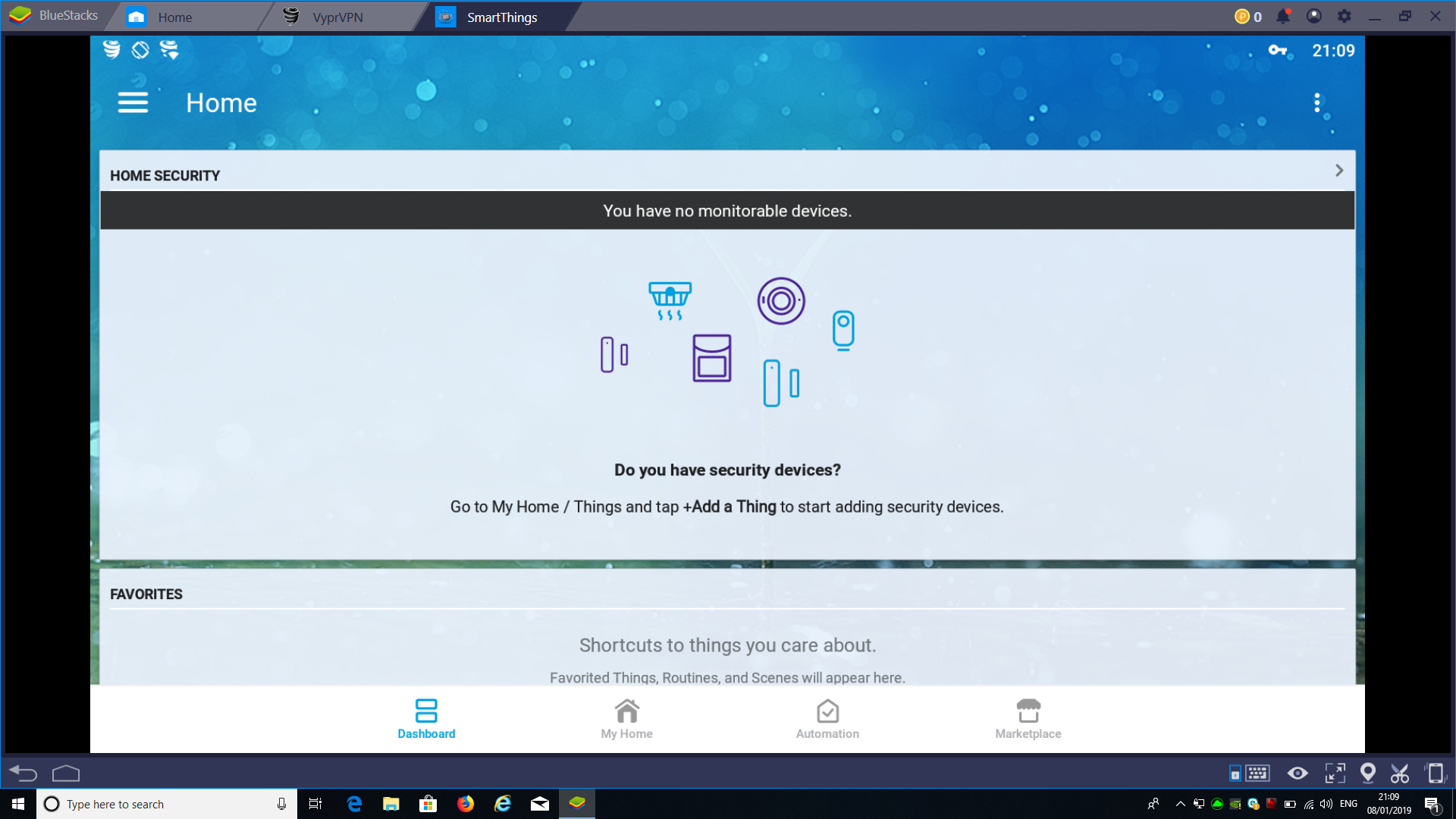
My problem is with using the app side of the adt system, this is what shows
As you can see im missing the “Home Security” buttons for ADT. I have tried creating an account with a VPN which directed me to the USA samsung page which i then created an account fine. But still wont show nothing !
Does any one know what its looking for to show these buttons ? do i need to activate the Hub with a VPN ?
You probably need the hub and your phone on VPN and functioning as if they are in the US. That is a complete guess though. My suggestion would be to look for something supported in you country. I would expect the headache of trying to work around the region issue will get old fast.
There are a fair amount of setup steps involved in that dashboard so I would expect that even though the sensors are added there may still be setup left to do.
You may he able to use ADT Tools to let you control the alarm like that dashboard with its virtual buttons and it can keep SHM in sync so you could see a status. But beyond thay I am not sure.
Wow. well you are certainly pushing some work around. I have to agree with JDRoberts in that this isn’t a good idea. You may get it working, but with what kind of reliability and such.
Lets get this back on topic as this thread is really about supporting ADT Tools, and not general ADT support.