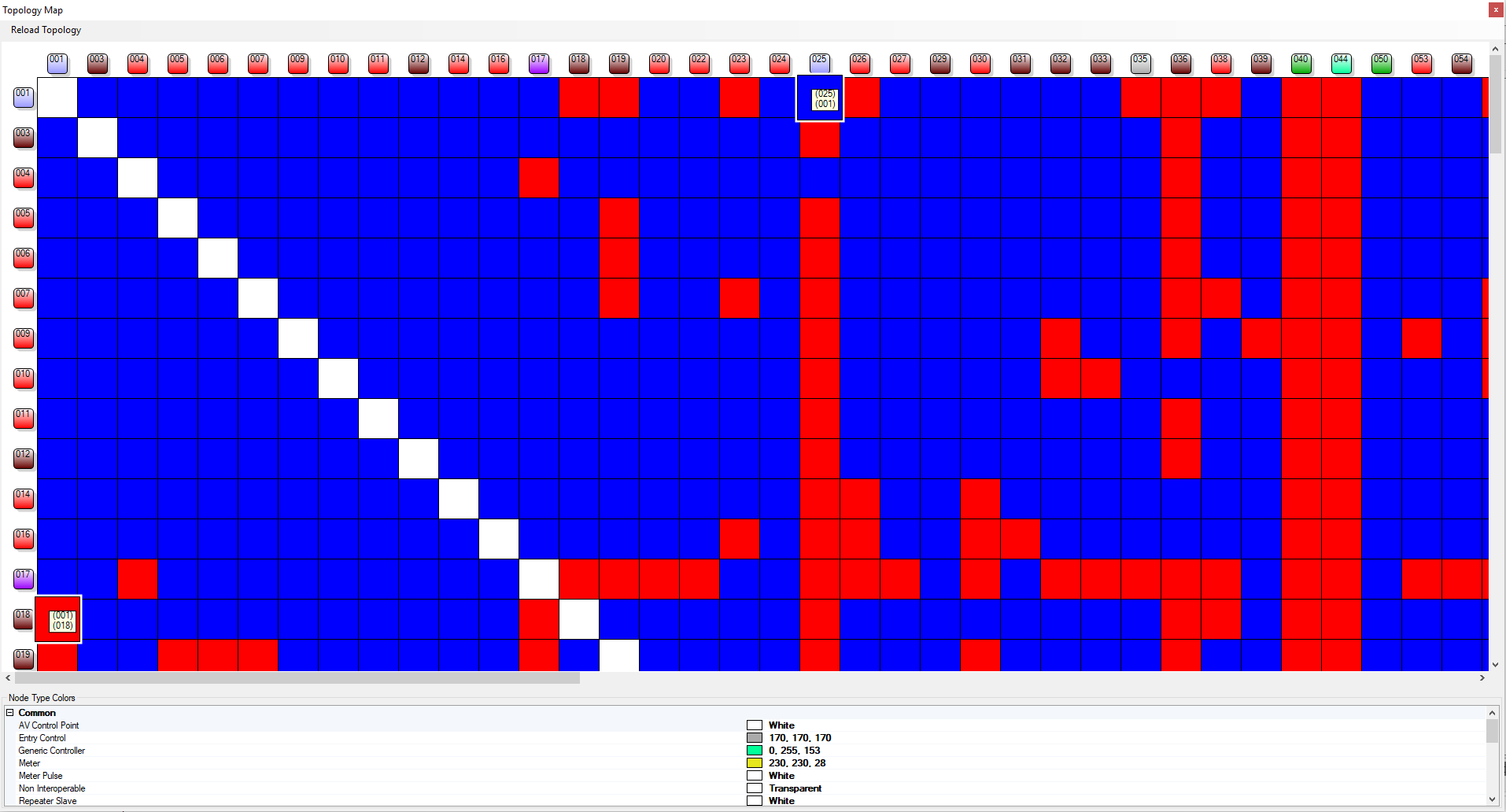
That’s a standard topology map. The device ID should be the same is the “device network ID” on your SmartThings account, which you can see in the IDE.
Remember that Z wave allows for dynamic routing, it’s not that there’s a single pathway so you’re not going to see lines the way you would if you were tracking a specific message. It’s just showing you which nodes can reach which other nodes in one hop.
A blue square means the node for that row and the node for that column can communicate in one hop. A Red Square means they can’t. The white square is where the same device is in both the row and column.
For example, node 3, a sensor, can only communicate with your hub.
Node 23, which is a binary switch, has a bunch of routing choices: it can communicate in one hop with your hub, switches 27, 28, and 46; a couple of door locks ( or maybe a garage door controller, but a “barrier entry” device) at 33 and 55 and 57, a sensor at 49, and then another six or seven devices that I can’t see the labels for, but it looks like another door lock, some more switches, and probably the USB stick at 100.
You said you have about 50 devices: just to be sure, are those all Z wave devices? Anything that’s in the network map for your zwave controller should show up on the topology map.
Is there any way to view the entire topology map instead of just what I show in the snippet below? My map has over 100 columns but only shows 38 columns and even less rows when the topology map is docked. When undocked (drag tab label) it gets a bit better but I still can’t see the entire map.
Docked:
Undocked:
Am I missing something? I just can’t find any way to resize this. I often have weird issues with devices close to each other and I would like a way to easily review my network at the very least to exclude a subset of potential issues. Based on my map, it appears that all devices have many alternative routes to the hub. The only devices that show a full red line are the minimotes and I am guessing that is normal.
EDIT: I found several IDs that do not show in the ST device list. Are those ghost devices still hanging out in my routing table? How can I get rid of them?
Write down those networkID. These are probably old devices but you got rid of them.
Login to SmartThings IDE. Go to devices, now create a new device. Name it whatever you want. Now under networkID type one of those ghost ID. Do this for all of your ghost.
Go to your app, find the ghost device you made and force delete.
Once you’ve deleted your ghost devices run a zwave repair from your IDE and this will fix your issue.
@matthewsfamily0914 - I had done that in the past when network repairs complained about devices that no longer existed however the ones showing up here do not show in the network repair log so it makes me wonder what is different. Regardless, I’ll try to do what you suggested to see if it changes anything in the topology map. Every so often my whole network seems to go nuts and only careful grooming - including network repairs - seems to bring it back to reason even though ST support always tells me it does more harm that good on a large zwave mesh network. Speaking of which… in some of the last network repairs I noticed the log saying something about devices with no name being removed… I wonder if that is the fix for ghost devices.
Sorry for the digression but does anyone know where I can download zentools from now? Aeotec have removed it from their web-site and moonlitzwave.com which seems to have been the other popular source has disappeared…
If you’re willing to spend $200-$250, you can now purchase the zwave toolbox without needing any of the other developer licenses. This has more reports and can be used in more ways than just getting a USB stick. It’s intended for professional installers who would keep the toolbox for themselves but take it with them to different client accounts to do troubleshooting. I don’t think most people won’t want to get one, but I did want to mention that it’s available, particularly for those intend to have multiple installations.
I believe I have not dealt with ghost devices in a couple years now so I am not sure what options there are now. Scour the event list to see if you see them there, but from what I recall, the tip off that there were some was that they were showing up in network repairs without a device name and were not appearing in the device list either.
ST support can also help… they’ve cleared them once or twice for me in the past. Be sure to contact SmartThings support and NOT Samsung support as your chances of getting through to someone aware of this issue are likely dramatically lower. This is not an every day issue
What device did you get that (green and yellow) screenshot from? If it’s from a web-based interface, I might be able to turn it into a “network layout” sort of representation.
I got a z-stick gen5
It’s been hours where i have been trying to connect the device as a thing in smartthings or use the utilities of it like mapping. I cant get anywhere. I plugged to my computer (windows) installed zensys tool tried everything. Clicked the action button. Reset it. Tried everything again and again. Downloaded other versions of zensys. Nothing could anyone please provide me with a step to step installation for this device out of the box or is my device defected
The Z-wave Ultimate Installer kit looks a lot like a warmed over copy of the expert menu out of z-way-server ( the expert interface is open source FWIW ).
Just you need to buy a razberry z-wave controller and install it on a Raspberry PI, and then join it as a secondary controller. The expert interface gives you the ability to trace the network, look for interference (radio),… nodes that are poorly linked.
The z-wave sniffer is particularly handy when trying to figure out what a device is send Smartthings (or getting back from SmartThings ).
You can disable all of the z-way-server’s home automation stack and just use their expert interface.
I personally use the z-way controller as my primary but all of the expert menu “stuff” will work if the controller is a secondary controller as well. I’ve had up to two of them running on my network at once in order to catch broadcast’ed messages ( which are not repeated ).
For zwave, it’s a “route record” of one possible path, but does not show all potential routes. This distinction will only affect people with multiple repeaters available.
This is why zwave utilities usually present a “network table,” not a fixed route like zigbee provides. Here’s a typical one. The blue squares indicate hops where communication is possible between two devices.
However, I don’t believe smartthings provides us with enough information to build this table for our own accounts without using a third party device like the toolbox.
So your project is very interesting, and will be particularly helpful for Zigbee. People using it for Z wave should be aware that it’s only part of the picture.
Just want to tell how Zensys Tools helped solved my problem.
I had one ZWAVE device. Fibaro Double Switch that stopped responding. Zwave repair didn’t helped. I bought a repeater , AEOTEC Smart Switch 7. Put it right next to the physical in which the Fibaro is installed with extended cable (few meters distance did not helped) . I noticed the the light became working again. I ran Zwave repair ,again, which gave good results, the problematic module had no errors . I removed the extended cable and installed the repeater in near by socket. I took a snap shot of the topology map before and after using the repeater. This is how it is look like:
Can someone detail out the correct steps for getting Zensys Tools connected as a secondary controller using a Z-wave USB stick?
And also the steps for cleanly getting the controller off of the Z-wave mesh.
I have managed to get it connected by randomly mashing icons until I suddenly got a list of nodes but I’m honestly not sure what I did.
When I did manage to get it working and get a topology map, I noticed there are four devices marked as “repeater slave” with IDs that don’t match any of my devices. Ghosts, maybe??



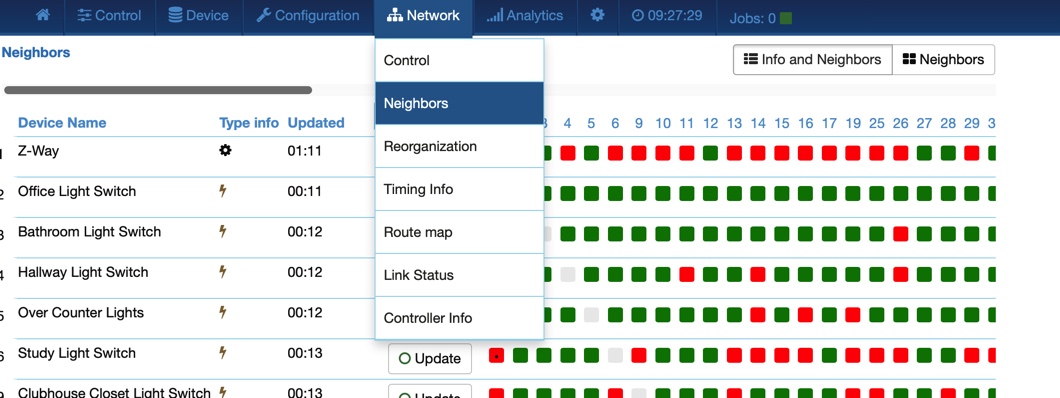
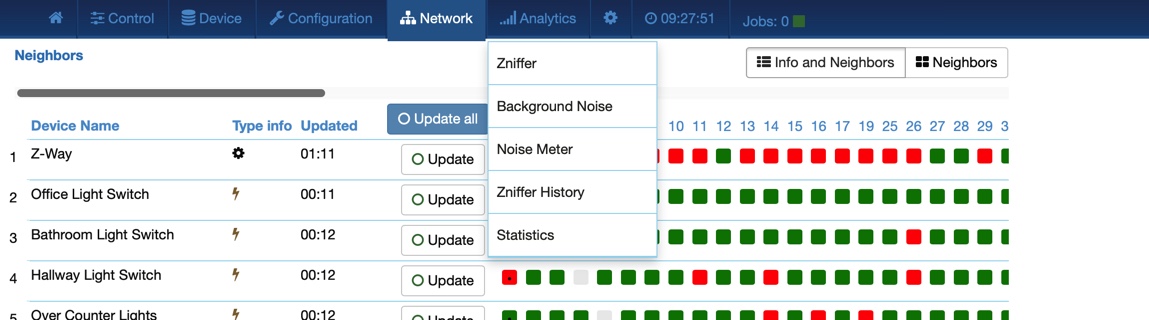
 in both version , don’t forget to choose the correct serial port in Categories-Settings


